

Features
Everything you need to plan, record and review money together
You bring the plan and the receipts; Moneva keeps the numbers honest, shows who is responsible for what, and makes the monthly review something a household or a team can do in twenty minutes.
- Every feature included
- Installs on your phone
- Approvals and an audit trail
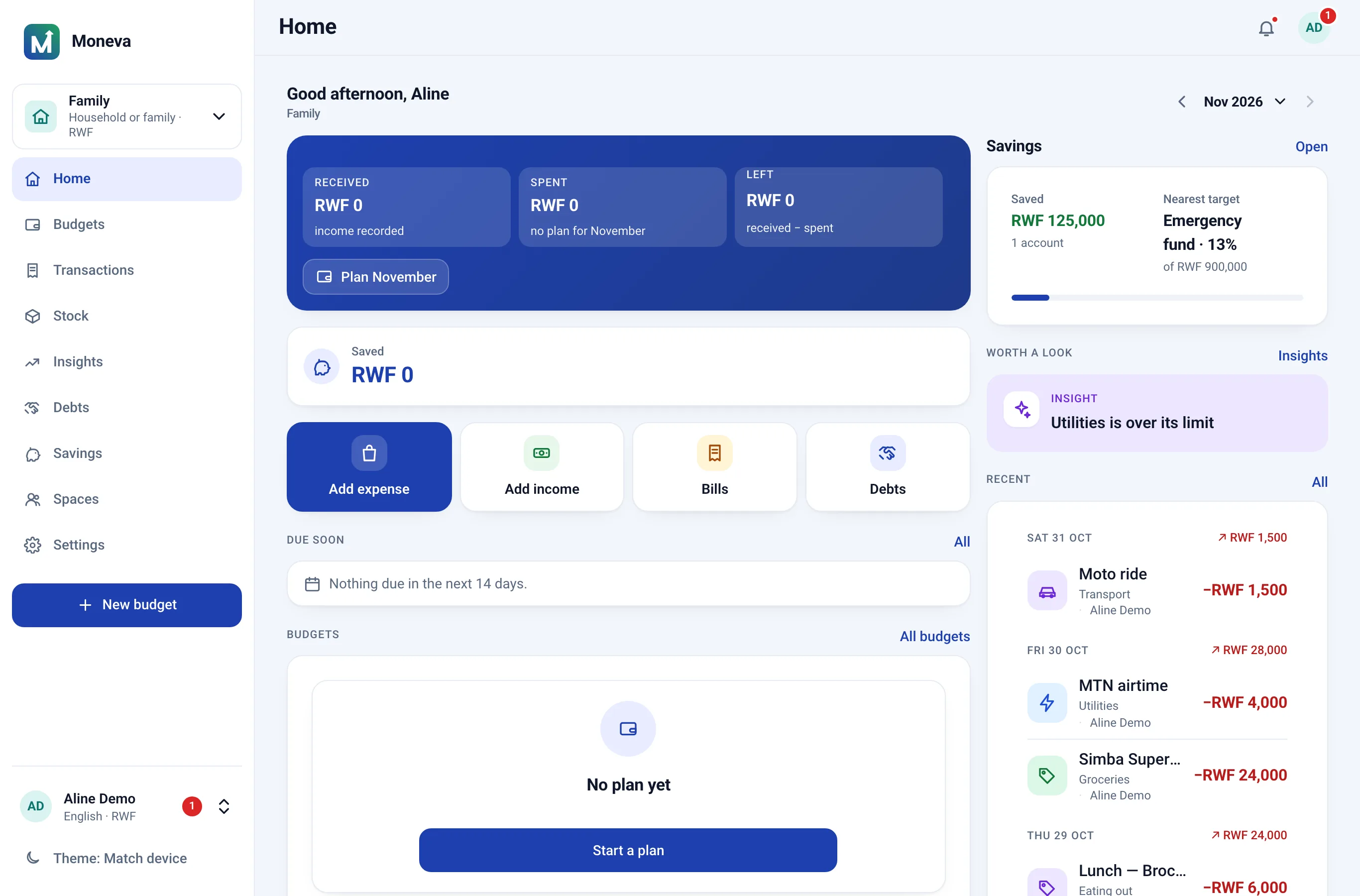
Plan budgets that match real life
Start a budget from a template — personal, household, event, construction — or from a blank page. Enter the income you can count on, set a planned amount for each category, and activate it. Monthly, weekly, quarterly, annual and custom periods are all supported, and a budget can be duplicated for the next period with carry-over applied automatically where you want it.
Every budget line carries more than one number. Planned is what you proposed, approved is what passed review, allocated is what has been released for spending. For a personal budget they are the same figure; for a project with phases and tranches they are three different ones, and the history shows each change with its reason.
- Essential and discretionary categories with custom icons and colours
- Overspend policy per budget: block, warn or allow
- Scenario budgets to test a plan without activating it
- Revisions with a written reason, approved when the space requires it
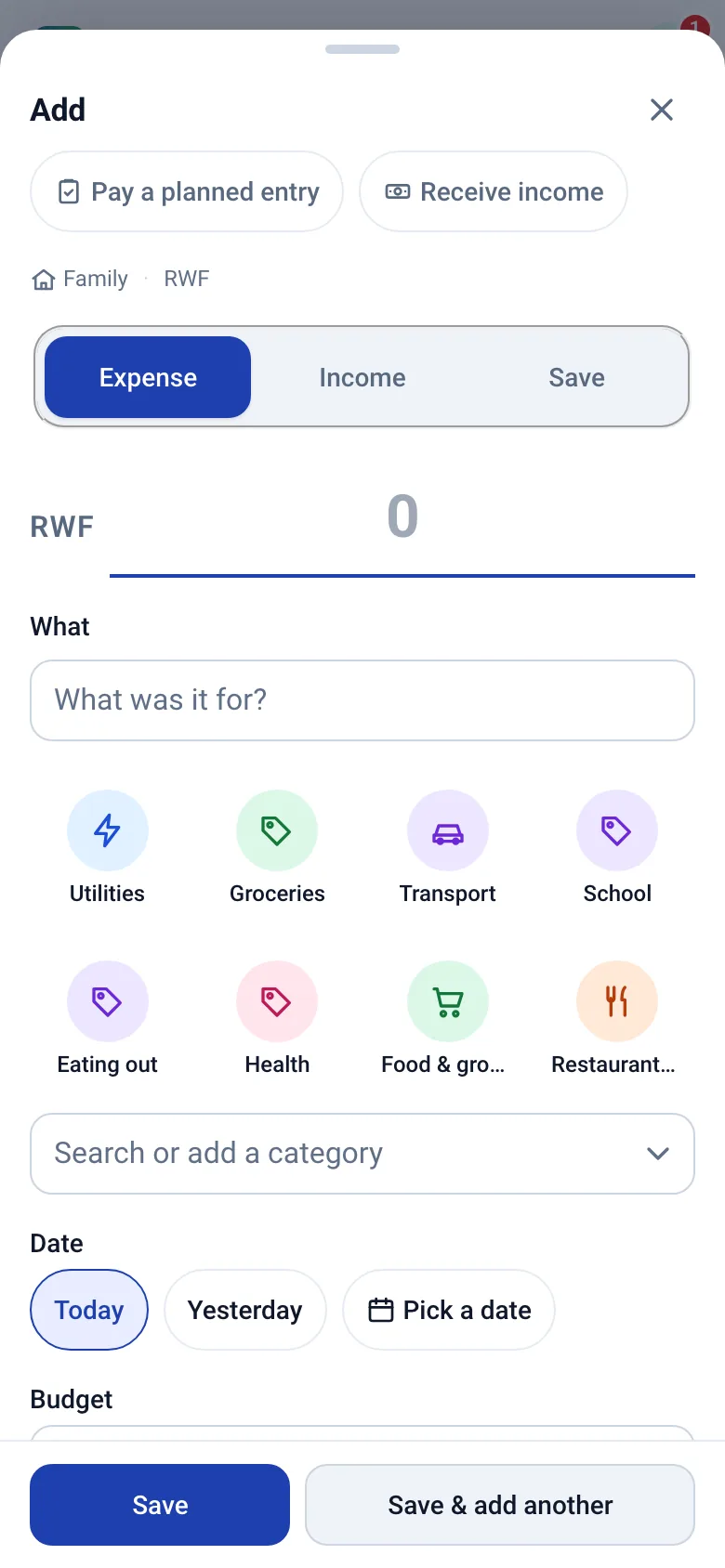
Record spending in seconds, with receipts
Quick add from any screen: amount, category, a word of description, done. Attach a photo of the receipt for anything you might be asked about later. Income, expenses, refunds and transfers are classified correctly from the start, so a transfer to savings never looks like spending and a refund reduces the category it came from.
Larger expenses can require approval. Set a threshold on the budget and anything above it waits as pending — recorded, visible, but not yet counted — until an approver confirms. Planned purchases go through an expenditure request that commits the money first and is fulfilled with the actual amount afterwards.
- Splits across categories, recurring bills with reminders, CSV import and export
- Reversals instead of deletions, so shared budgets stay auditable
- Search and filters by period, category, member, status and amount
Share a space without sharing everything
Your personal space is private — nobody else can see its budgets, income or transactions. Household, group and project spaces are shared, with roles (owner, admin, approver, contributor, viewer) that decide who can edit the plan, approve spending, record expenses or only look. Each budget line can be assigned to the member responsible for it; they see their lines first and get the reminders.
The activity feed shows actions — "Amina recorded an expense on Groceries" — rather than amounts, unless the space owner turns amounts on and the viewer has permission to see all transactions. Invitations expire, memberships can be changed or ended, and ownership can be transferred.
Read more about household budgets, group accountability and project budgeting.
Save towards goals and keep the streak
A savings goal has a target, a date and a monthly amount calculated from the two. Contributions are recorded as transfers so they never distort your spending, milestones unlock at 25, 50, 75 and 100 percent, and a streak counts consecutive periods with a contribution. Goals can be shared with a household or group, with each member's contribution recorded under their name.
Stock that lasts the period
A household that buys rice, oil, soap or charcoal in bulk keeps them in Stock: items in kilos, litres, pieces or packets, per location (home, kitchen, store). Every purchase, use, return, transfer and count is a movement, so the quantity on hand is derived from history and always explained; nothing is ever deleted, a mistake is reversed. Quantities in different units are never added together.
A target says how much a period should use. The page compares use with the even-use line and says "slower than planned" or "faster than planned", projects when the item runs out and how much more to buy, and can nudge you when stock will not last or is used above the planned rate. A stock plan ties targets to the planned entries of a budget, so the money side (budget for these items, spent, left) comes from the same budget summary as everywhere else.
Recording a purchase from an expense adds the quantity to stock in one step; a count compares what is on the shelf with the stock on the counted day and records the difference with a reason (loss, found, unrecorded use, damage, expiry). Closing a period carries the remaining stock into the next one. Stock changes nothing in your money: a count is never an expense.
Fair-price intelligence
Every purchase recorded with a quantity and a unit price becomes a price per unit for that item: grams and millilitres normalise to kilos and litres, pieces and packets stand on their own. The price page shows what you paid, which purchase pulls the average up or down, and the figures by the market, shop or supermarket you bought at.
Community figures are medians of anonymised purchases, by district and kind of place, with the middle half (p25 to p75) and a six-month trend. A figure is only shown when it rests on five or more purchases from three or more spaces; rows carry no household, user or label, a space's own private items never take part, and the district is the only place text that crosses spaces. The comparison tells you, for example, that you paid 5% more than the community median, and leaves the decision to you.
Review and improve
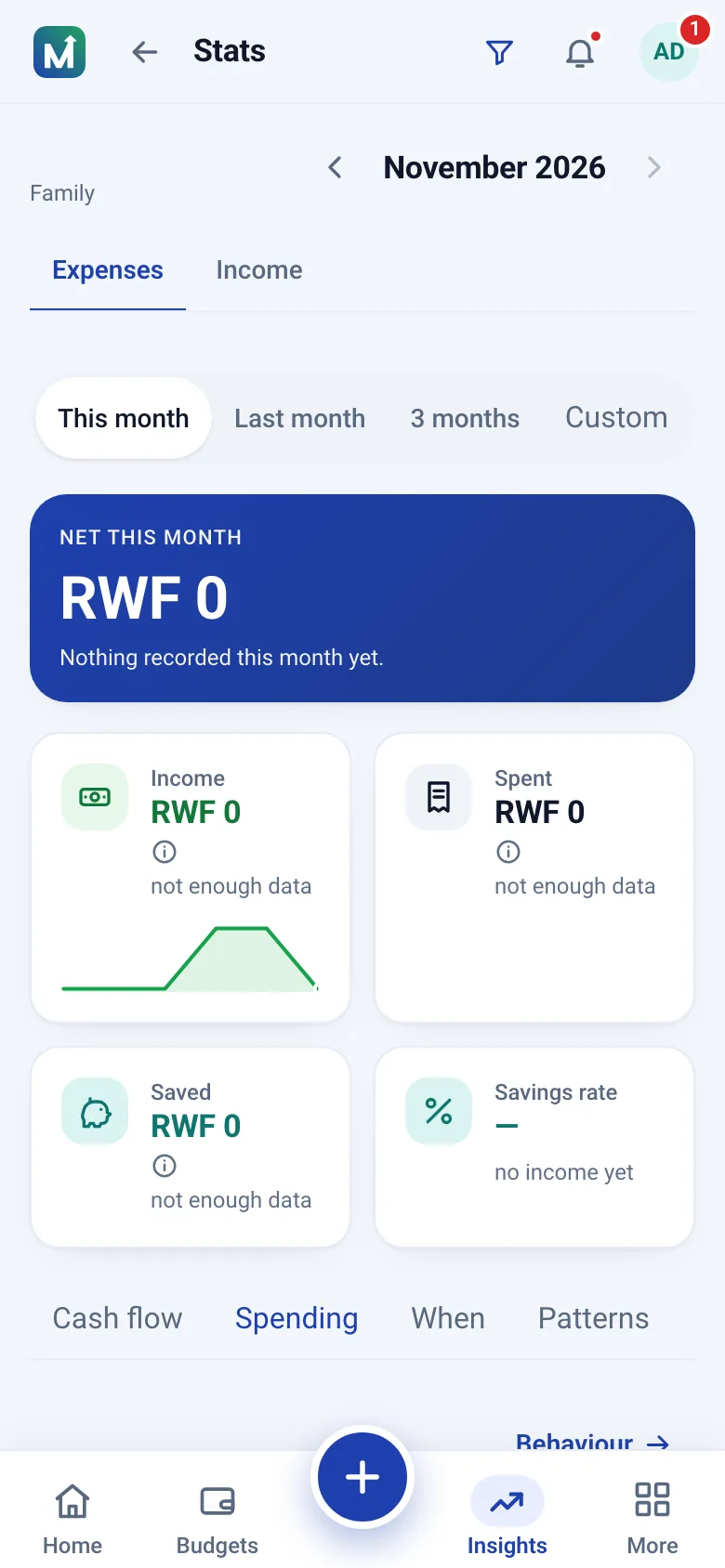
Insights compare planned and actual by category, member and period, show essential versus discretionary spending, spot recurring charges and project where the month is heading at the current pace. Reports — monthly review, category, income, budget performance, household, savings, project execution, approvals, reconciliation — export to CSV or PDF.
Every figure is computed from the income and expenses you record, with the rule behind it explained on the screen; nothing is sent to an AI provider. Gamification — XP, levels, badges, challenges — is optional per person and per space.
What it deliberately does not do
- No automatic imports. Transactions are recorded by hand or imported from a CSV file, which keeps you aware of every entry and works with cash and mobile money alike.
- No holding or moving money. Savings goals track contributions you make elsewhere.
- No mixing currencies. Each space has one currency; amounts in different currencies are never added together.
- No ads, no trackers, no data sales. The only cookies are the ones the app needs to work.
See the pricing page for what the plan includes (every feature, today) and the FAQ for the details people ask about most.
Questions
Questions about the features
How do transactions get into Moneva?
You record income and expenses yourself as they happen, or import a CSV file. Manual recording keeps you aware of every transaction and works with cash and mobile money as well as bank accounts.
Can I use it on my phone?
Yes. Moneva is a mobile-first web app you can install on your home screen. It needs a connection to show and save your money data; nothing financial is stored on the phone.
Which currencies are supported?
Each space has one currency (Rwandan francs by default). Amounts in different currencies are never added together.
Try it with this month's budget
Create a free account, pick a template and record this week's spending. Ten minutes is enough to see the difference.